?? Nederlands – ?? Français – ?? English – ?? Italiano – ?? Español
__________________________________________________________
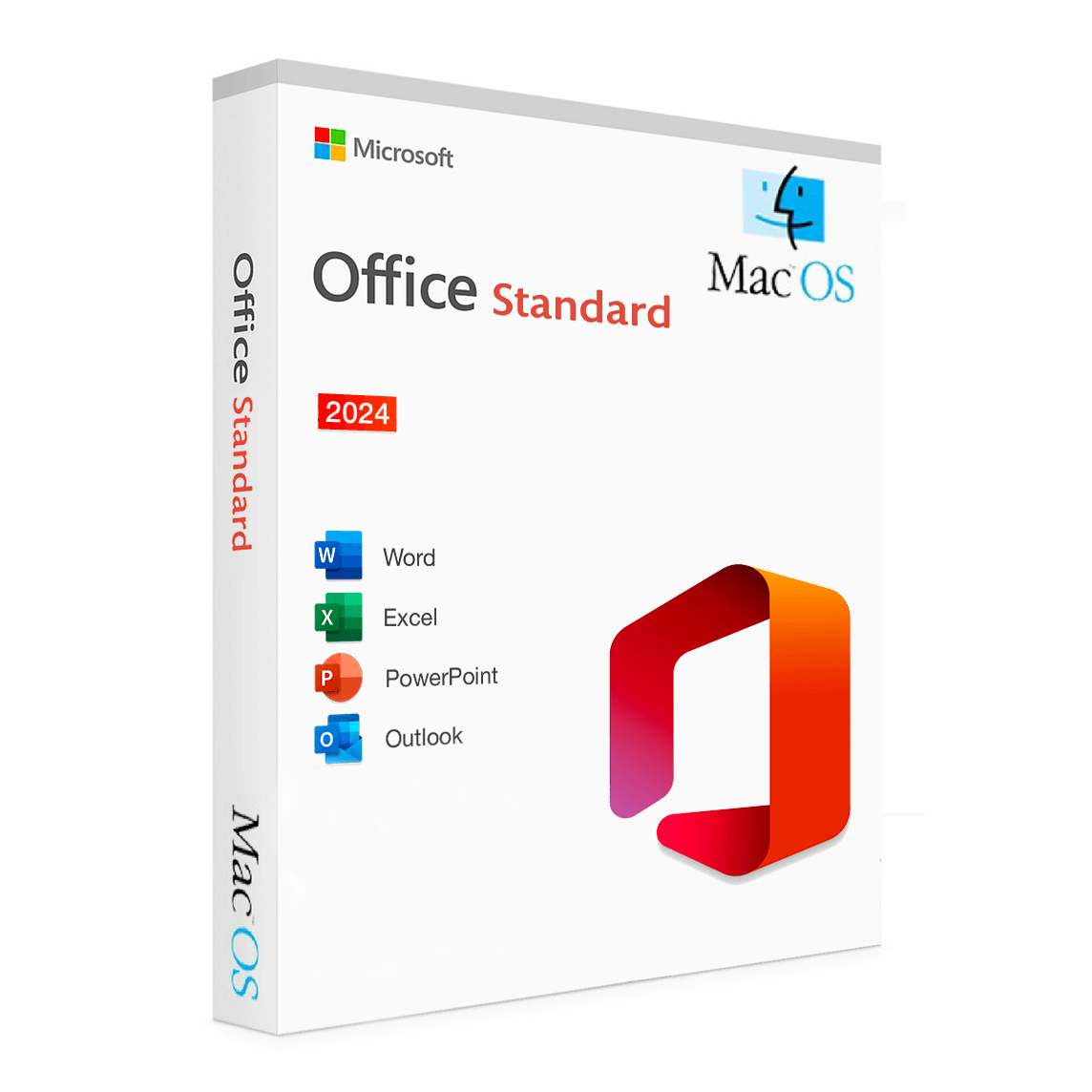
 CD-KEYS dankt u voor de aankoop van
installatie én activatie van
“Office 2024 Standaard MacOS 1 Apparaat”
Opmerking
Let op: Voor u installeert, verwijder eerst alle oude Office software (https://www.microsoft.com/nl-be/microsoft-365/products-apps-services) en herstart PC.
Als dit het geval is, vragen wij u deze volledig te deïnstalleren en vervolgens uit de prullenbak te verwijderen.
Vervolgens kunt u stap voor stap beginnen met installeren en activeren!
Zorg eveneens dat je uitgelogd bent op je Microsoft account!
Installeren
1. Installeer de MS Office 2024-software voor Mac.
De download pagina is gewijzigd, zie afbeelding waar je kan downloaden. Zie afbeelding
Installer: https://e.pcloud.link/publink/show?code=XZhLYcZzW8sXFTlmsfyh1vP0xNGq0EIYrxV
Serializer: https://e.pcloud.link/publink/show?code=XZjLYcZbYwvgY5fAuV5Svb74Nox8RnedilX
Eerst installeren en erna Download de Serializer voor Office 2024 voor Mac en installeer deze om uw Office-pakket te activeren, dat na activering onbeperkt/zonder beperkingen geldig is op de Mac.
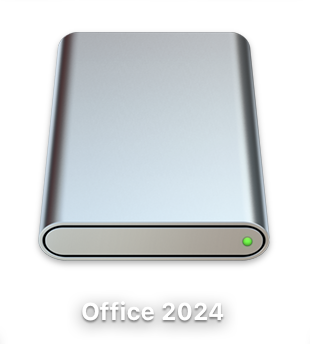
Wanneer je op de serializer klikt, gebeurt er niets. Ga vervolgens naar je bureaublad; daar zie je het icoon van Office 2024 Mac staan. Dubbelklik op dit icoon om de installatie van de serializer te starten. Voltooi vervolgens de installatie en Office 2024 Mac is geactiveerd.
VOORBEELD: ICOON SERIALIZER OP BUREAUBLAD
Deze versie bevat geen digitale Key, activatie gebeurt middels Serializer!
Info video: https://youtu.be/ovUYSFBsfpM?si=wcESEioYOukvADfx
Uitleg na het downloaden
Uitloggen van Microsoft-accounts
Zorg ervoor dat je uitgelogd bent van je Microsoft-accounts in alle relevante apps.
Opening van het ISO-bestand
Het is belangrijk om te weten dat het ISO-bestand niet automatisch als installer wordt geopend.
Om te beginnen, dubbelklik op het ISO-bestand om het te openen. Dit zal een nieuwe schijf in Finder creëren.
Zoeken naar het installatiebestand
Ga naar de Finder en open de nieuwe schijf die is verschenen na het openen van het ISO-bestand.
Hierin vind je een bestand met de extensie .pkg. Dit is het installatiebestand dat je nodig hebt.
Installatie
Dubbelklik op het .pkg-bestand om de installatieprocedure te starten en volg de instructies op het scherm.
Nadat u stap 1 en 2 heeft uitgevoerd, is het activeren van uw pakket voltooid.
Wij verzoeken u vriendelijk dit te controleren, bijvoorbeeld door Excel te openen > klik linksboven op Excel > en klik vervolgens op ‘Informatie over Microsoft Excel’.
In het geopende venster zouden onder ‘Licentie’ de vermelding ‘Volumelicentie’ en uw apparaat-ID moeten verschijnen.
Dit bevestigt de succesvolle voltooiing van de activering.
* Als je na de activatie met Serializer nog steeds de foutmelding ontvangt dat je Office niet geactiveerd is, sluit dan alle Office-programma’s.
Start vervolgens een programma zoals Word opnieuw op. Bij het gedeelte ‘Account’ zul je zien dat je Office 2024 Mac nu geactiveerd is.
____________________________________________
 CD-KEYS merci pour l’achat de Votre Clé D’activation
pour le téléchargement, l’installation et l’activation de
“Office 2024 Standard MacOS 1 Utilisateur”
Remarque
Attention: Avant l’installation, désinstallez tout ancien logiciel Office (https://www.microsoft.com/fr-fr/microsoft-365/products-apps-services) et redémarrez le PC.
Si tel est le cas, nous vous demandons de le désinstaller complètement puis de le supprimer de la Corbeille.
Ensuite, vous pouvez commencer l’installation et l’activation étape par étape!
Assurez-vous également que vous êtes déconnecté de votre compte Microsoft!
Installation
1. Installez le logiciel MS Office 2024 pour Mac
La page de téléchargement a changé, voir l’image où vous pouvez télécharger. Voir l’image
Installer: https://e.pcloud.link/publink/show?code=XZhLYcZzW8sXFTlmsfyh1vP0xNGq0EIYrxV
Serializer: https://e.pcloud.link/publink/show?code=XZjLYcZbYwvgY5fAuV5Svb74Nox8RnedilX
Installez d’abord puis téléchargez le Serializer pour Office 2024 pour Mac et installez-le pour activer votre package Office, qui est valable indéfiniment/sans restrictions sur Mac après activation.
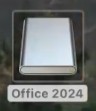
Lorsque vous cliquez sur le serializer, rien ne se passe. Allez ensuite sur votre bureau ; vous verrez l’icône d’Office 2024. Cliquez deux fois sur cette icône pour démarrer l’installation du serializer. Terminez ensuite l’installation et Office 2024 Mac sera activé.
EXEMPLE: ICÔNE DU SÉRIALISEUR SUR LE BUREAU
Cette version ne contient pas de Clé numérique, l’activation se fait via Serializer !
Info video: https://youtu.be/ovUYSFBsfpM?si=wcESEioYOukvADfx
Explication Apres Téléchargement
Déconnexion des comptes Microsoft:
Assurez-vous d’être déconnecté de vos comptes Microsoft dans toutes les applications pertinentes.
Ouverture du fichier ISO:
Il est important de savoir que le fichier ISO ne s’ouvre pas automatiquement en tant qu’installateur. Pour commencer, double-cliquez sur le fichier ISO pour l’ouvrir. Cela créera un nouveau lecteur dans le Finder.
Rechercher le fichier d’installation:
Accédez au Finder et ouvrez le nouveau lecteur qui est apparu après l’ouverture du fichier ISO. Vous trouverez ici un fichier avec l’extension .pkg.
C’est le fichier d’installation dont vous avez besoin.
Installation:
Bouble-cliquez sur le fichier .pkg pour démarrer la procédure d’installation et suivez les instructions à l’écran.
3. Une fois que vous avez terminé les étapes 1 et 2, l’activation de votre package est terminée.
Nous vous demandons de bien vouloir le vérifier, par exemple en ouvrant Excel > cliquez sur Excel en haut à gauche > puis cliquez sur ‘Informations sur Microsoft Excel’.
Dans la fenêtre qui s’ouvre, l’entrée ‘Licence en volume’ et l’ID de votre appareil doivent apparaître sous ‘Licence’.
Cela confirme la réussite de l’activation.
* Si vous recevez toujours le message d’erreur indiquant que votre Office n’est pas activé après l’activation avec Serializer, fermez tous les programmes Office.
Redémarrez ensuite un programme tel que Word. Dans la section ‘Compte’, vous verrez que votre Office 2024 est désormais activé.
____________________________________________

CD-KEYS thanks you for purchase of your key
for download, installation and activation of
“Office 2024 Standard MacOS 1 user“
Remark
Be carefull: Before installation, uninstall Office software (https://www.microsoft.com/en-us/microsoft-365/products-apps-services) and restart the PC.
If this is the case, we ask you to uninstall it completely and then remove it from the trash, then start installing and activating step by step!
Also make sure you are logged out of your Microsoft account!
Installation
1. Install the MS Office 2024 software for Mac
The download page has changed, see image where you can download. See image.
Installer: https://e.pcloud.link/publink/show?code=XZhLYcZzW8sXFTlmsfyh1vP0xNGq0EIYrxV
Serializer: https://e.pcloud.link/publink/show?code=XZjLYcZbYwvgY5fAuV5Svb74Nox8RnedilX
Install first and then Download the Serializer for Office 2024 for Mac and install it to activate your Office package, which is valid indefinitely/without restrictions on Mac after activation.
When you click on the serializer, nothing happens. Then, go to your desktop; there you will see the icon of Office 2024. Double-click on this icon to start the installation of the serializer. Then complete the installation, and Office 2024 Mac is activated.
EXAMPLE: SERIALIZER ICON ON DESKTOP
This version does not contain a digital Key, activation is done via Serializer!
Info video: https://youtu.be/ovUYSFBsfpM?si=wcESEioYOukvADfx
Explanation after downloading
Sign out of Microsoft accounts:
Make sure you’re signed out of your Microsoft accounts in all relevant apps.
Opening the ISO file:
It is important to know that the ISO file does not open automatically as an installer. To get started, double-click the ISO file to open it. This will create a new drive in Finder.
Search for the installation file:
Go to the Finder and open the new drive that appeared after opening the ISO file. Here you will find a file with the extension .pkg. This is the installation file you need.
Installation:
Double-click the .pkg file to start the installation procedure and follow the on-screen instructions.
3. After performing steps 1 and 2, activating your package is now complete.
We kindly ask you to check this, for example by opening Excel, > click on Excel at the top left > and then click on ‘Information on Microsoft Excel’.
In the window that opens, the entry ‘Volume license’ and your device ID should appear under ‘License’. This confirms the successful completion of the activation.
*If you still receive the error message that your Office is not activated after activation with Serializer, close all Office programs.
Then restart a program such as Word. In the ‘Account’ section you will see that your Office is now activated.
____________________________________________

CD-KEYS ti ringrazia per l’acquisto della tua chiave per il download, l’installazione e l’attivazione di
“Office 2024 Standard MacOS 1 utente“
Nota importante
Attenzione: prima dell’installazione, disinstalla eventuale software Office (https://www.microsoft.com/en-us/microsoft-365/products-apps-services) e riavvia il PC.
Se questo è il caso, ti chiediamo di disinstallarlo completamente e di rimuoverlo anche dal cestino; quindi avvia l’installazione e l’attivazione passo dopo passo!
Assicurati inoltre di aver effettuato il logout dal tuo account Microsoft!
Installazione
1. Installa il software MS Office 2024 per Mac
La pagina di download è cambiata; consulta l’immagine per vedere dove effettuare il download. Vedi immagine..
Programma di installazione: https://e.pcloud.link/publink/show?code=XZhLYcZzW8sXFTlmsfyh1vP0xNGq0EIYrxV
Serializer: https://e.pcloud.link/publink/show?code=XZjLYcZbYwvgY5fAuV5Svb74Nox8RnedilX
Installa prima il software e poi scarica il Serializer per Office 2024 per Mac e installalo per attivare il pacchetto Office, che dopo l’attivazione è valido a tempo indeterminato/senza restrizioni su Mac.
Quando fai clic sul serializer, potrebbe non succedere nulla. In tal caso, vai sul desktop: lì vedrai l’icona di Office 2024. Fai doppio clic su questa icona per avviare l’installazione del serializer. Completa quindi l’installazione e Office 2024 Mac sarà attivato.
ESEMPIO: ICONA DEL SERIALIZER SUL DESKTOP
Questa versione non contiene una chiave digitale; l’attivazione avviene tramite Serializer!
Video informativo: https://youtu.be/ovUYSFBsfpM?si=wcESEioYOukvADfx
Spiegazione dopo il download
Disconnessione dagli account Microsoft:
Assicurati di aver effettuato il logout da tutti gli account Microsoft nelle app pertinenti.
Apertura del file ISO:
È importante sapere che il file ISO non si apre automaticamente come programma di installazione. Per iniziare, fai doppio clic sul file ISO per aprirlo. Questo creerà una nuova unità in Finder.
Ricerca del file di installazione:
Apri Finder e accedi alla nuova unità comparsa dopo l’apertura del file ISO. Qui troverai un file con estensione .pkg. Questo è il file di installazione necessario.
Installazione:
Fai doppio clic sul file .pkg per avviare la procedura di installazione e segui le istruzioni visualizzate sullo schermo.
3. Dopo aver completato i passaggi 1 e 2, l’attivazione del tuo pacchetto è ora conclusa.
Ti chiediamo gentilmente di verificarlo, ad esempio aprendo Excel: clicca su Excel in alto a sinistra > quindi su “Informazioni su Microsoft Excel”.
Nella finestra che si apre, sotto “Licenza” dovrebbero comparire la voce “Licenza volume” e l’ID del tuo dispositivo. Questo conferma che l’attivazione è stata completata con successo.
*Se dopo l’attivazione tramite Serializer ricevi ancora il messaggio di errore che indica che Office non è attivato, chiudi tutti i programmi Office.
Riavvia quindi un programma come Word. Nella sezione “Account” vedrai che Office risulta ora attivato.
____________________________________________

CD-KEYS te agradece la compra de tu clave
para la descarga, instalación y activación de
“Office 2024 Standard MacOS 1 usuario“
Nota
Atención: antes de la instalación, desinstala el software de Office (https://www.microsoft.com/en-us/microsoft-365/products-apps-services) y reinicia el PC.
Si es así, te pedimos que lo desinstales por completo y que luego lo elimines de la papelera; después, empieza la instalación y la activación paso a paso. Select 72 more words to run Humanizer.
¡Asegúrate también de haber cerrado sesión en tu cuenta de Microsoft!
Instalación
1. Instala el software MS Office 2024 para Mac
La página de descarga ha cambiado; consulta la imagen para ver dónde puedes descargarlo. Mira la imagen.
Instalador: https://e.pcloud.link/publink/show?code=XZhLYcZzW8sXFTlmsfyh1vP0xNGq0EIYrxV
Serializer: https://e.pcloud.link/publink/show?code=XZjLYcZbYwvgY5fAuV5Svb74Nox8RnedilX
Instala primero el software y luego descarga el Serializer para Office 2024 para Mac e instálalo para activar tu paquete Office, que tras la activación es válido de forma indefinida/sin restricciones en Mac. Cuando hagas clic en el serializer, puede que no ocurra nada. En ese caso, ve a tu escritorio; allí verás el icono de Office 2024. Haz doble clic en este icono para iniciar la instalación del serializer. A continuación, completa la instalación y Office 2024 Mac quedará activado.
EJEMPLO: ICONO DEL SERIALIZER EN EL ESCRITORIO
¡Esta versión no contiene una clave digital; la activación se realiza mediante el Serializer!
Vídeo informativo: https://youtu.be/ovUYSFBsfpM?si=wcESEioYOukvADfx
Explicación después de la descarga
Cerrar sesión en las cuentas de Microsoft:
Asegúrate de haber cerrado sesión en todas tus cuentas de Microsoft en las aplicaciones correspondientes.
Apertura del archivo ISO:
Es importante saber que el archivo ISO no se abre automáticamente como instalador. Para comenzar, haz doble clic en el archivo ISO para abrirlo. Esto creará una nueva unidad en Finder.
Buscar el archivo de instalación:
Ve a Finder y abre la nueva unidad que apareció después de abrir el archivo ISO. Allí encontrarás un archivo con la extensión .pkg. Este es el archivo de instalación que necesitas.
Instalación:
Haz doble clic en el archivo .pkg para iniciar el proceso de instalación y sigue las instrucciones que aparecen en pantalla.
3. Tras completar los pasos 1 y 2, la activación de tu paquete ya está finalizada.
Te pedimos amablemente que lo compruebes, por ejemplo abriendo Excel: haz clic en Excel en la esquina superior izquierda > y luego en “Información de Microsoft Excel”.
En la ventana que se abre, bajo “Licencia”, deberían aparecer la entrada “Licencia por volumen” y el ID de tu dispositivo. Esto confirma que la activación se ha completado correctamente.
*Si después de la activación mediante el Serializer sigues recibiendo el mensaje de error indicando que Office no está activado, cierra todos los programas de Office.
A continuación, reinicia un programa como Word. En la sección “Cuenta” verás que Office ahora está activado.